The function buttons at the top of the search results page include options for sharing, printing, saving, exporting, and more. If your MLS uses third-party apps, additional function buttons may be displayed on your search results page.
Work on behalf of
Click Work on behalf of to work with the listings in a contact's Portal. For more information, see Work on Behalf of a Contact.
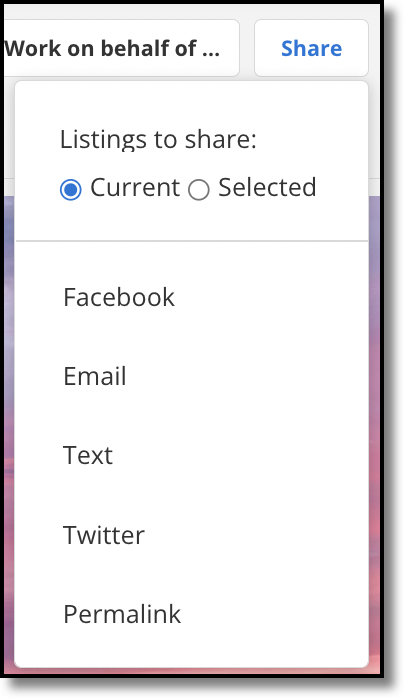
Share
Click Share to share selected listings, if allowed by your MLS. Your MLS may also allow sharing your own listings from the Change Listing page.
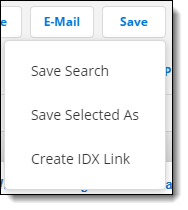
Save
Click Save to save the search, save selected listings as a listing collection, or create an IDX link from the search criteria (if you use Flexmls IDX).
-
For more information about saving a search, see Save a Search.
-
For more information about saving a listing collection, see Save a Listing Collection.
-
If you click Save from the Edit Search tab, you can save and customize the current Quick Search template. For more information, see Customize an Inherited Quick Search Template.
Click Email to send a listing report via email. You can send the interactive version, which includes a link to the search results that can be viewed in a browser, or the printer friendly version, which includes a link to a printer-ready report. For more information about sending listings via email, see Email Listings from Flexmls.
Click Print on the search results page to print or email a listing report. For more information, see Print Listings from Flexmls.
CMA
Click CMA to start creating a Comparable Market Analysis with the search results. For more information about CMAs, see Comparable Market Analysis (CMA) in Flexmls.
More
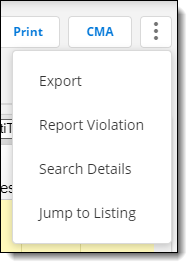
Click the More (three vertical dots) button to access additional actions that you can take on search results.
-
Click Export to export listing data to a file that can be shared or imported into another program. For more information, see Export Search Results.
-
Select a listing and click Report Violation to report errors you see in listing information. This option opens the MLS error reporting tool used by your MLS, and may be named differently in your MLS. For more information, see Report a Listing Error.
-
Click Search Details to view information about the search, including the property types included and the search criteria.
-
Click Jump to Listing when viewing the List tab to jump to a point in the list by typing a number in the selection box.