To ensure that the contact information in your business card matches the contact information you have entered in your Flexmls profile, use profile tags in your business card.
The Profile pane at the right side of the report editor lists the available profile tags. Some categories contain a Primary option that uses the profile data that is marked as primary in your profile.
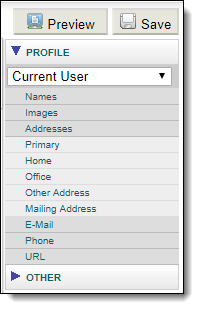
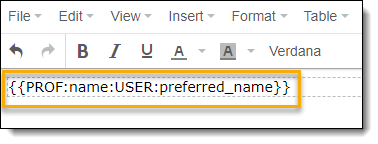
To get started, click the Names category and then choose Preferred Name. The Preferred Name profile tag will be added to the business card.
Note
The Preferred Name profile tag shows either the Public View Name or Private View Name from your profile, depending on where the business card is being displayed.
The report editor shows the tag information, but when you use the business card it will automatically show the name you have specified in your profile.
- Press the Enter key to move to the next line in the editor.
- Continue adding tags by clicking on categories and choosing profile data