Use hyperlinks to add clickable links to your business card in Flexmls.
In the report editor, type the text that you want to be clickable in the business card. For example, if your email address will be clickable, type your email address or other text such as "Email me".
Note
Depending on your web browser, when you type an email address or web site URL, the text may be formatted as a hyperlink automatically when you press Enter. Use the following steps if the hyperlink is not created automatically.
- Use your mouse to highlight the text that you want to make into a hyperlink.
Click the Insert menu and select Link. The text that you highlighted will appear in the Text to display field. (Double-check that this is the text that you want to make clickable.)
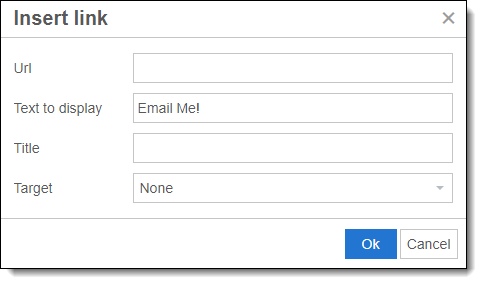
Enter a URL into the Url field.
- To create a link that opens a new email message, type mailto: followed by the email address that you want the email to be sent to. For example, type mailto:me@example.com.
- To create a link that opens a web site, type or paste the web site address.
- Click Ok to create the link.