There are multiple methods for adding images to a custom business card. We recommend using profile tags, but there may be cases where one of the other methods is more appropriate.
If you use a Photo or Logo profile tag to add an image, the image in your business card will be updated when the image in your Flexmls profile is updated. The following procedure assumes that you are using a table to organize the information in your business card.
- In the report editor, click inside the table cell where you want to add the image.
-
In the right panel of the editor, click Images and then click Photo to insert a photo or click Logo to insert a logo. Like other profile tags, a placeholder (a green rectangle) is displayed in the report editor instead of the actual image.
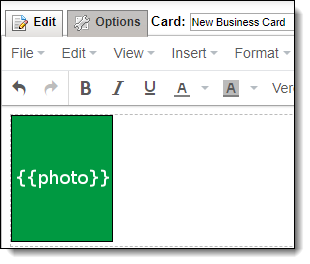
- To change the properties of an image, right-click on the placeholder and click Image. Use the options in the pop-up window to specify image size, border, and more.
Click the My Photos button in the report editor to insert a photo or logo that you have uploaded to the Personal Photo and Logo Maintenance section of your profile. If you use the My Photos button to add an image, the business card uses a static copy of the selected image instead of a placeholder. If you change the image in your Flexmls profile, the image on your business card will not change automatically.
You can use images from an external web site, such as a personal web site, Facebook, or Twitter, in your business card. This method eliminates the step of uploading the image to Flexmls. However, this method assumes that the image is available on the internet. If the image becomes unavailable for any reason (web site goes down, is redesigned, or the image is removed), your Flexmls business card will be affected.
- Navigate to the web page where the image is stored.
- Right-click on the photo, then click Copy Image URL.
-
With your business card open in the report editor, click inside the table cell where you want to place the image. Click the Insert menu and select Image.
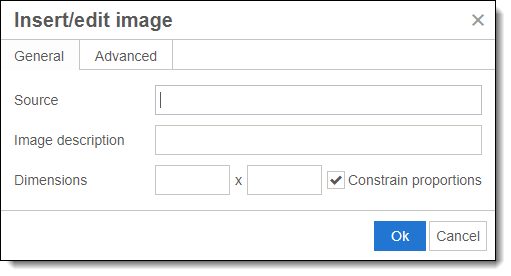
- In the pop-up window, right-click in the Source field and click Paste to paste the image URL.
- Click Ok to insert the image. The selected image will be displayed in the report editor.