-
To access the Quick Search function, click Quick Search on the menu or in the Favorites bar.
-
The last Quick Search template that you used is selected by default (1 – Residential in the example below). To select a different template, click the menu in the upper left corner of the search results page. The Quick Search templates provided by your MLS use the naming convention "# – Property Type," as in the illustration below.
Note
If you specify search criteria and then select a different Quick Search template, your selections will be cleared.
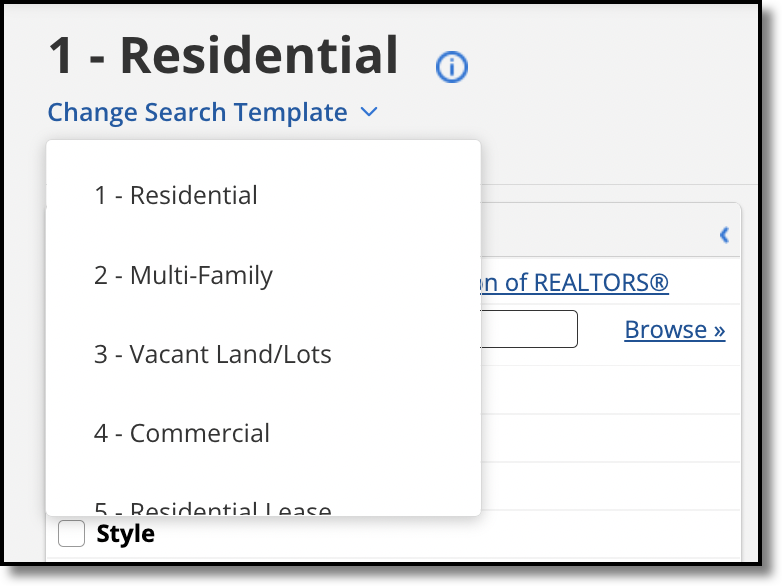
-
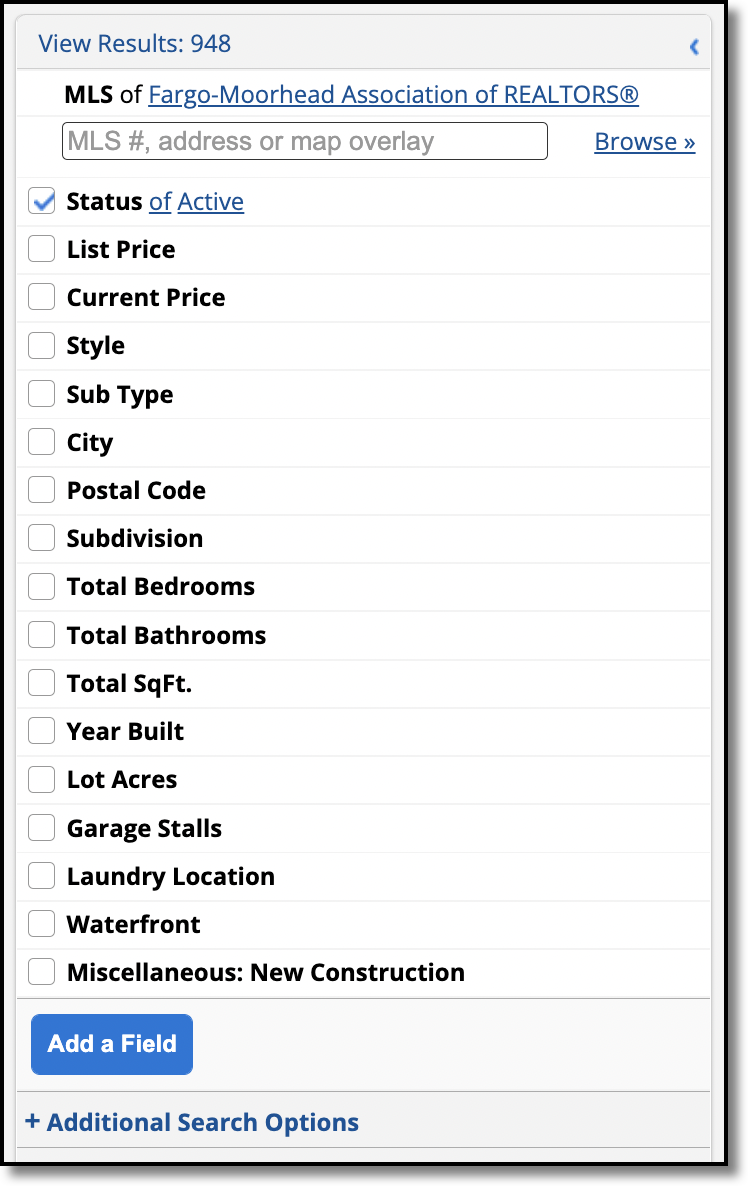
The preselected search fields from the template appear in the left panel, with no criteria specified other than the default status selection set by the MLS. You can select other statuses.
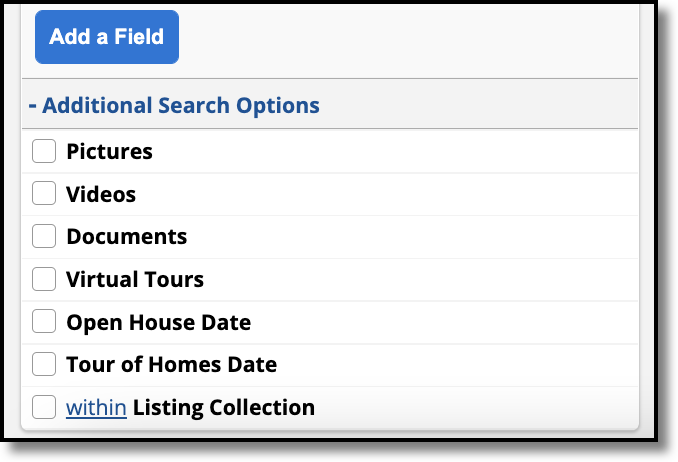
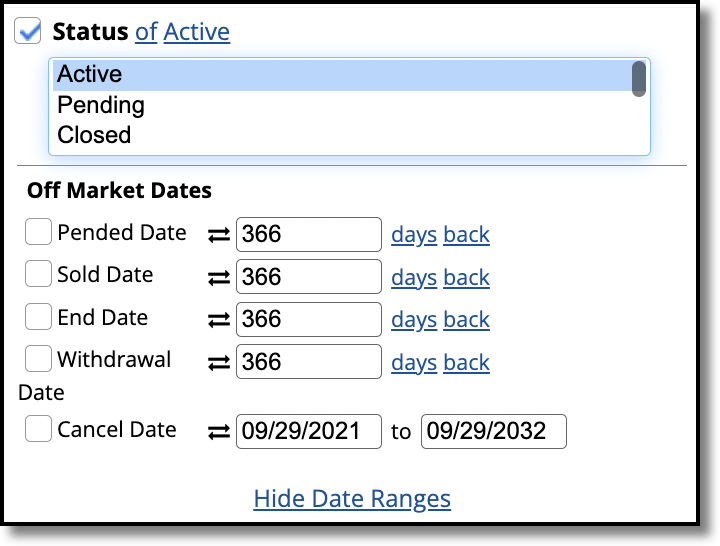
Click the Status field and then clickSee All and Select Date Rangesto view all available statuses and date ranges to make selections. Note that date fields can be applied only to quick searches that include the Status field.
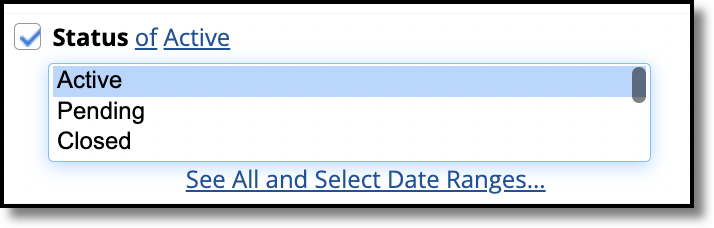
Depending on the settings of your MLS, choosing a status may automatically select the related off-market date. For example, if you select the Closed status, the system will automatically include Sold Date in the search criteria.
-
Click on any field to expand it and view its options. (If you prefer the fields to be expanded by default, you can set the preference on the General Preferences page. For more information, see General Preferences.) To select multiple items from a list, hold down the CTRL key (Command key on a Mac).
-
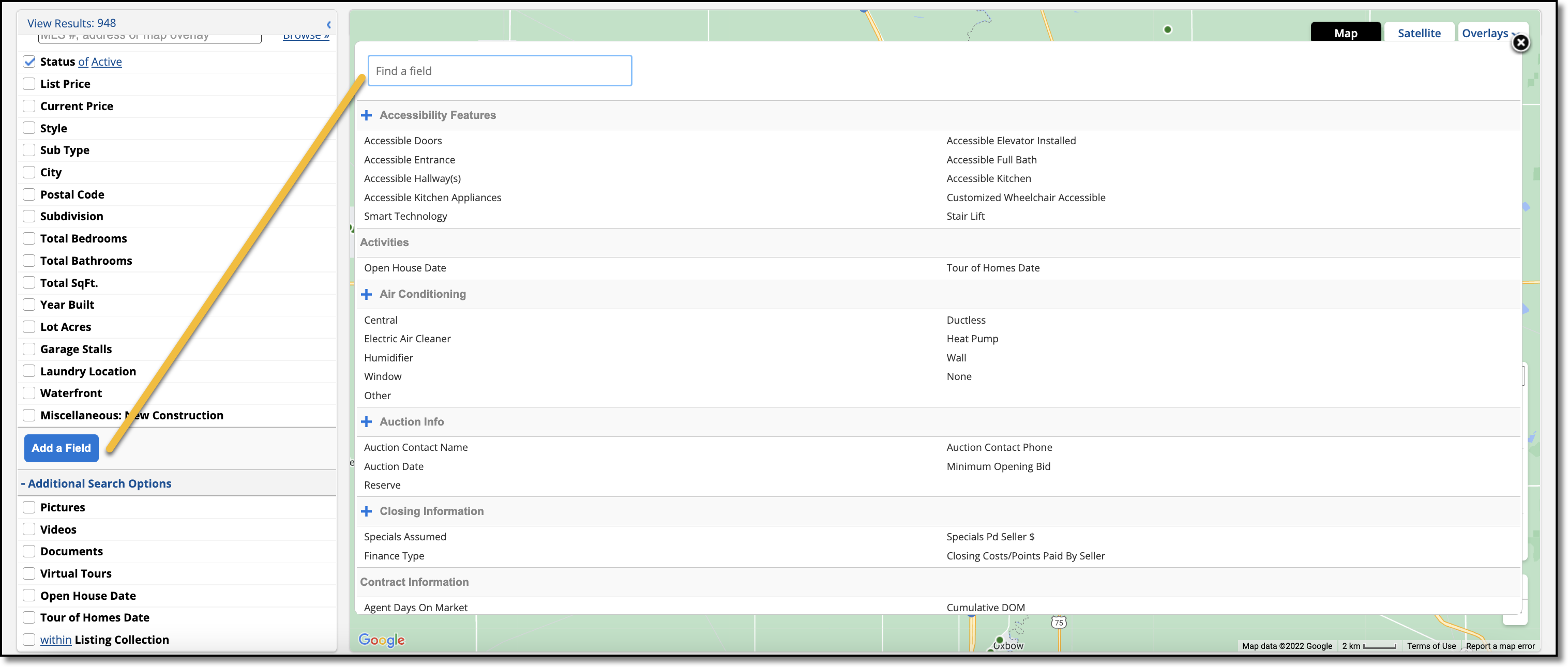
To add fields that aren't in the Quick Search template, click Add a field to the search in the left panel. To narrow the list of fields, start typing the name of the field that you want to add. Click on a field to add it to the search.
-
As you refine search criteria, the results will be updated on the map in the right panel. For more information about working with search results, see Using the Search Results Page.
Work on Behalf of a Contact
Click the Work on behalf of button to perform a Quick Search for a selected contact. When you work on behalf of a contact, you can see what they see in their portal. View their news feed, access their saved searches, and recommend or hide listings. For more information, see Work on Behalf of a Contact.